Introducing BookFusion for Windows: A Native Reading Experience, Built from the Ground Up

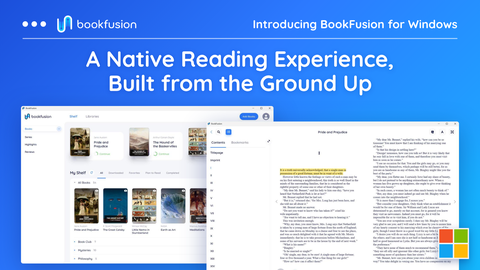
Your books. Your articles. Your highlights. Now with a dedicated Windows desktop app built for the way you read.
We’re excited to officially introduce BookFusion for Windows, our new native desktop application designed to bring your entire digital reading experience to your PC.
Some of you might remember that we quietly started working on our Windows desktop app last year. Since then, a small group of readers and educational institutions have had early access, helping us test, refine, and shape the experience.
We originally expected to release it much sooner. So, what took us so long?
Well, we decided to take a different approach. And as it turns out, building a great native reading experience from the ground up takes a little more time than we anticipated. But we’re happy we did.
The result is a true native Windows application, built to deliver faster performance, lower memory usage, and a smoother reading experience than traditional browser-based, cross platform or web-wrapped desktop applications.
Whether you’re reading your favorite novel, working through research papers, organizing thousands of eBooks, or listening to your books while getting other things done, BookFusion for Windows brings it all together.
And, of course, your library, highlights, notes, and reading progress stay connected across your devices when you use your BookFusion account.
Why We Built BookFusion for Windows Differently
At BookFusion, we’ve always believed that digital reading deserves more than simply displaying pages on a screen.
Our mission is to help readers access, organize, understand, and get more value from everything they read, whether for learning, research, work, or pleasure.
That philosophy also guides how we build our apps.
Rather than simply packaging our existing web experience inside a desktop window, we chose to develop a native Windows application with rendering engines built from scratch for reflowable EPUBs, fixed-layout EPUBs, comics, and other supported content.
This gave us greater control over how books render, how pages turn, how text flows, and how the app interacts with your computer.
It also allowed us to focus on three important goals:
- Performance: Deliver responsive navigation, smooth page turns, efficient rendering, and lower memory overhead.
- Reading Quality: Support everything from simple novels to complex EPUB 3 textbooks, illustrated books, PDFs, and comics without compromising the reading experience.
- A Connected Library: Bring the flexibility of desktop reading together with the organization, annotations, and cross-device syncing that BookFusion readers already enjoy.
We also wanted an application that feels at home on Windows, with familiar keyboard shortcuts, touchpad gestures, window controls, and native system integration.
Our approach reflects several of the values that guide us at BookFusion: Passion, Innovation, Excellence, Candor, and Community.
We care deeply about delivering an exceptional reading experience. We’re willing to explore new technical approaches and invest the time needed to get every detail right.
Most importantly, we listen to our readers. The feedback from our early testers helped us identify issues, improve performance, and refine features throughout development.
This release represents an important milestone, but it’s also the foundation for everything we’ll continue building on Windows.
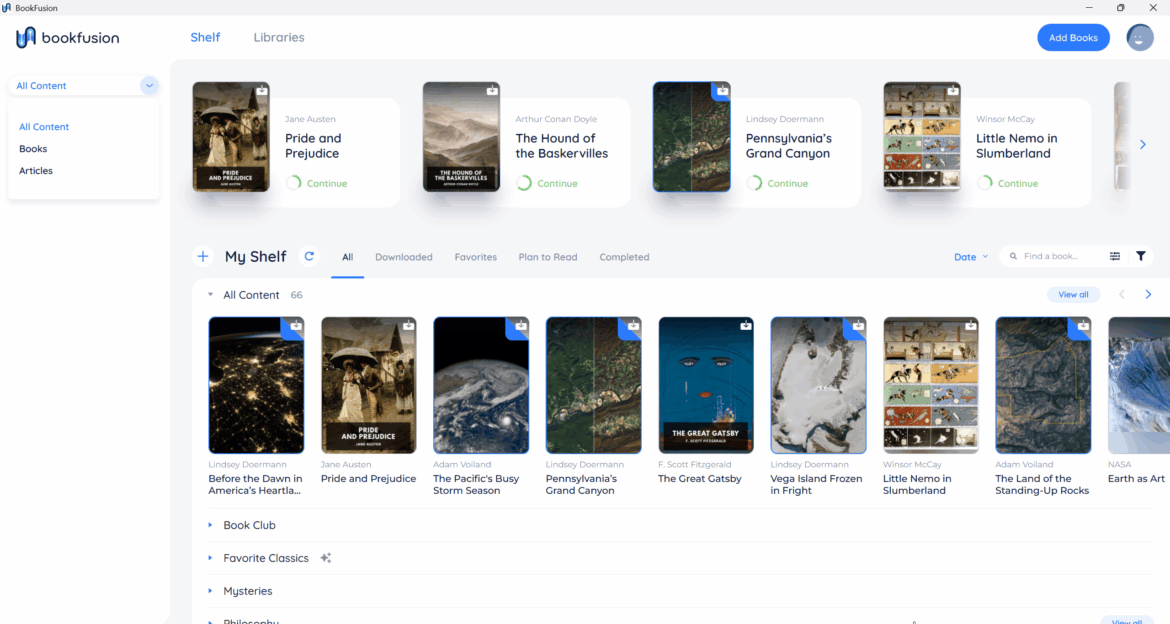
Bookshelf & Library Management
We’ve brought BookFusion’s library management features to Windows, making it easier to organize, discover, and manage everything you read.
Your Entire Library, Beautifully Organized
Quickly move between All, Currently Reading, Downloaded, Favorites, Plan to Read, Completed, and your custom bookshelves.
You can also switch between viewing all your content, books only, or articles only. BookFusion remembers your selection, so your library opens the way you prefer.
Need to make changes to your collection?
You can now:
- Manage series: Create, rename, delete, and organize your book series, including while offline.
- Edit book details: Update titles, authors, covers, descriptions, languages, publishers, publication dates, tags, and more.
- Manage reviews: View, search, sort, edit, and delete book reviews, including half-star ratings.
- Create custom shelves: Organize your library into collections that match the way you read.
- Work offline: Search, sort, and organize downloaded books even when you don’t have an internet connection.
Let Smart Shelves Organize Your Library
Have a large digital library? You shouldn’t have to manually organize every book.
With Smart Shelves, you can create dynamic collections that automatically update as books match your chosen filters.
Want a shelf containing all your unread science fiction books? Or perhaps every book published in the last five years with a particular tag?
Create a Smart Shelf once, and let BookFusion handle the organization.
You can also group books by author, tag, series, publisher, or year.
Need to find something specific without creating a shelf? Smart Queries let you search your library using advanced filtering conditions.
Smart Queries are available to all readers and creating Smart Shelves is available with Advanced, Power, and eligible Family plans.
You can learn more about how to use Smart Queries & Smart Shelves by visiting our documentation site at: https://docs.bookfusion.com/docs/smart-queries-&-smart-shelves/overview
Read Without Creating an Account
We know that not every reader needs or wants to sync their books across multiple devices. Some simply want a great reading experience on their own computer, without creating an account or paying for features they don’t need.
That’s why BookFusion for Windows lets you read and manage your books locally without signing up, with all supported local reading features fully unlocked at no cost.
Simply install the application, add your eBooks, and start reading. You’ll have access to the full local reading experience, including:
- Highlights and notes
- Bookmarks
- Text-to-Speech
- Reading themes and customization
- Local library organization
- Offline reading
All supported local-only features are unlocked, with no sign-up or payment required.
Ready to Sync? Your Library Comes With You Across All Devices.
One of BookFusion’s biggest advantages is the ability to continue reading across devices. When you’re ready, simply sign in or create a BookFusion account.
You can then add your locally stored books, highlights, notes, bookmarks, and reading progress to your BookFusion library and sync them across your supported devices, subject to your plan limits.
Start reading locally today. Connect and sync your library whenever you’re ready.
A Reading Experience Built for Your Desktop
Reading on a desktop offers something special: more screen space, better multitasking, and the freedom to customize your reading environment. We’ve taken advantage of that extra space to create a flexible reading experience that works equally well for casual reading, studying, and research.
Read & Explore, Side by Side
One of the biggest improvements is the introduction of dockable side panels.
You can access your Table of Contents, Highlights, and Bookmarks alongside your reading content, without constantly switching between different screens.
Jump between chapters, review earlier annotations, or navigate your bookmarks while keeping your book in view. Searching is easier, too. Search inside EPUBs and PDFs, or initiate a search directly from selected text and highlights.
And if you follow a link or jump to another chapter, the new Back and Forward navigation lets you return to your previous reading location. This is especially useful when working with textbooks, technical documentation, and research material.
Make Every Book Look the Way You Want
Everyone has their own reading preferences. Some readers love a classic sepia background. Others prefer dark themes, larger fonts, or carefully adjusted margins and spacing.
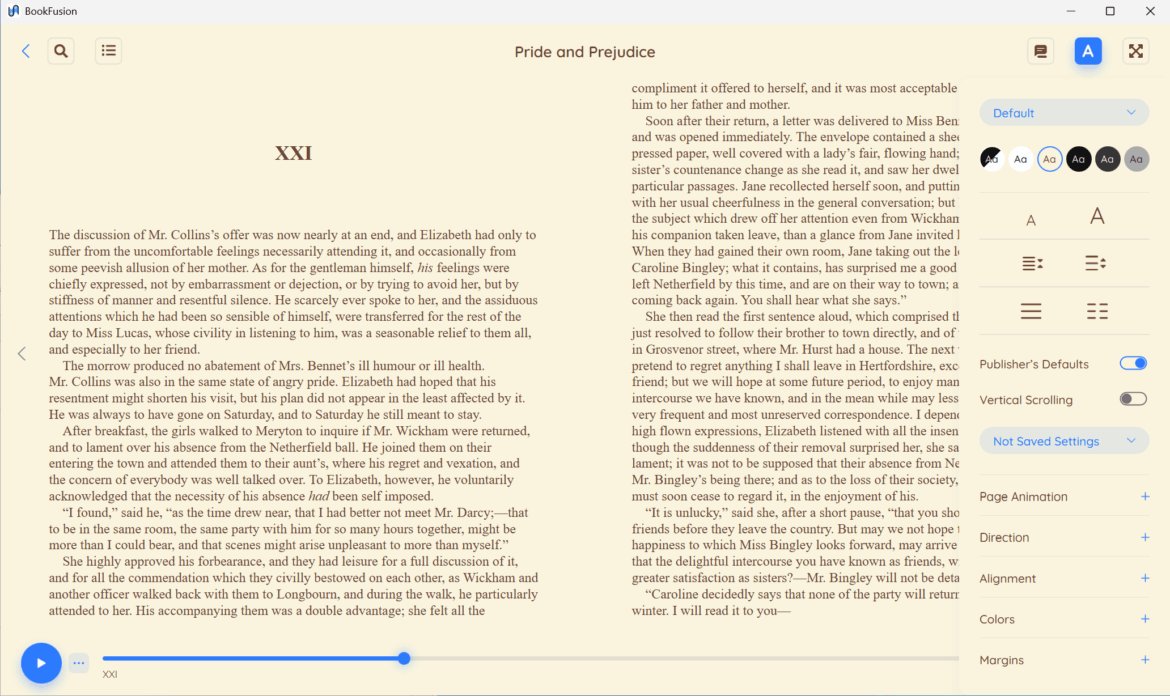
With BookFusion for Windows, you can customize nearly every aspect of the reading experience. Choose from six themes: White, Sepia, Night, Dark Grey, Light Grey, and Auto. Auto automatically follows your Windows appearance.
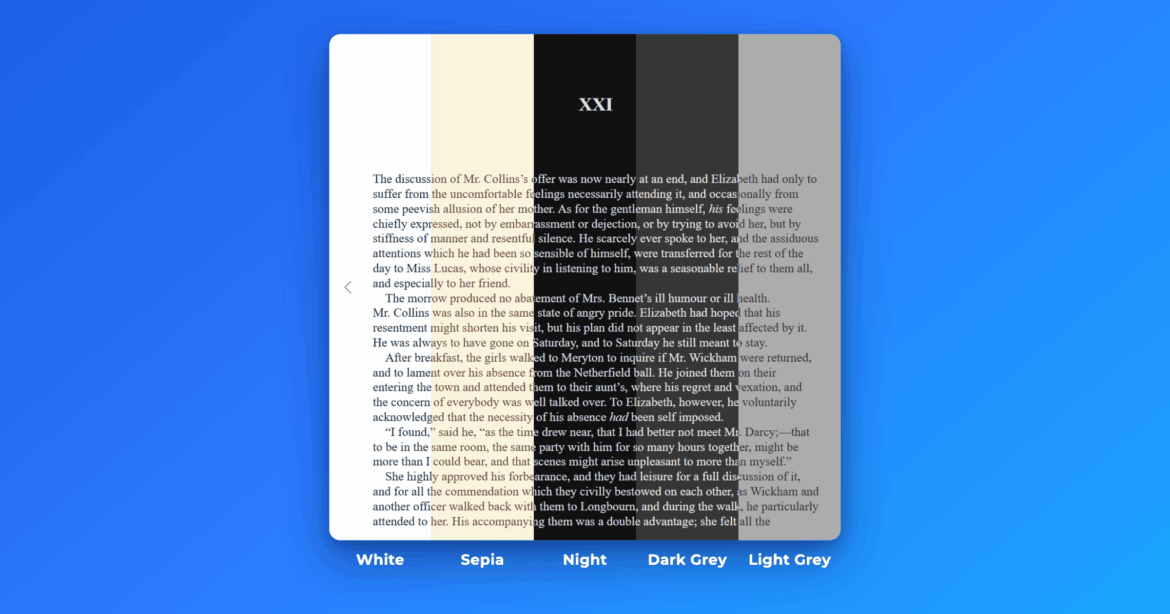
You can also adjust fonts, text alignment, margins, line spacing, paragraph spacing, and custom colors. Prefer the formatting chosen by the publisher? You can apply the publisher’s original EPUB styling or override it with your own preferences.
And with Saved Reading Presets, you can create your favorite configurations and sync them across supported BookFusion apps using your account. Set things up once and enjoy a familiar reading experience wherever you go.
Two-Column Reading, Page Spreads & Improved Comics
Put that larger screen to work.
BookFusion supports two-column layouts for reflowable EPUBs and two-page spreads for PDFs, fixed-layout books, and comics. Want to read a novel with two columns, similar to an open book? You can.
Reading a beautifully illustrated textbook or graphic novel? Display pages side by side. We’ve also improved our comic reading experience with faster loading, instant page turns, zoom controls, and configurable page spreads. Additional PDF scaling options and rendering improvements help documents display more clearly, including on high-resolution monitors.
We’ve also improved support for right-to-left content, including Arabic, Hebrew, and manga.
Natural Navigation With Touch, Touchpad & Keyboard
Reading should feel effortless, regardless of how you navigate. With the new sliding page-turn animations, pages move smoothly as you advance through EPUBs, PDFs, and comics.
On touchscreens, swipe directly across the page. On compatible touchpads, use two fingers and watch the page follow your movement. Prefer a keyboard? Use your arrow keys to navigate, or hold an arrow key to continue turning pages.
You can also turn off page animations in the reader settings. BookFusion respects Windows’ reduced-animation preferences as well.
And when you want to focus completely on your book, press F11 or use the fullscreen button for distraction-free reading.
Highlights, Notes & Bookmarks: Your Knowledge, All in a Single Place
Reading is only part of the experience. Sometimes, what matters most is what you remember, discover, and take away from a book. We’ve made it easier to capture those ideas and return to them later.
Explore All Your Highlights From Your Bookshelf
Previously, you might have needed to open individual books to review your annotations. With the Windows app, you can access your highlights directly from your bookshelf.
Browse, search, filter, edit, copy, or delete highlights across your library without opening every book individually. This makes it much easier to revisit useful passages, review research, or find an idea you saved weeks ago.
Organize Your Knowledge With Highlight Tags
Tags make your annotations even more useful. Add tags while reading or directly from your highlights collection. Click a tag to see every highlight associated with it, or filter your highlights by tag, author, category, or type. For example, you might tag passages with Research, Ideas, Favorite Quotes, or To Review.
Over time, your highlights become a searchable collection of ideas rather than notes scattered across different books.
Highlight More Than Just Text
Important information doesn’t always appear in paragraphs. It might be a chart, an illustration, a diagram, or a table. With PDF Area Highlights, you can select and highlight visual content directly inside PDFs. This is especially useful when studying textbooks, reviewing research papers, or working with technical documents.
Better Syncing, Even When You’re Offline
We’ve improved how BookFusion saves and synchronizes highlights, notes, bookmarks, and reading progress. Highlights from your other devices are refreshed when you open a book, with daily refreshes for downloaded books.
If you’re working offline, BookFusion keeps your changes locally and automatically synchronizes them when your connection returns. We’ve also strengthened annotation reliability, including highlight positioning, saving, editing, and deletion across devices.
Discover, Borrow & Read From Digital Libraries
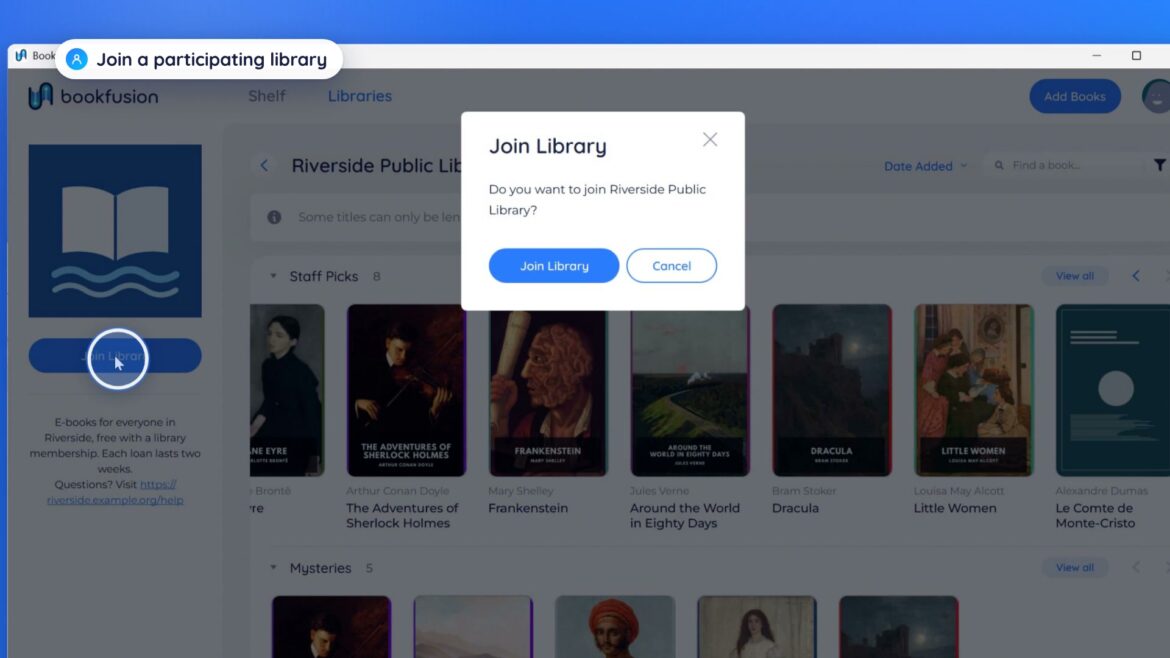
BookFusion for Windows isn’t limited to the books you upload. You can also explore digital libraries, discover new titles, and borrow books directly through the application.
Browse available libraries, explore their collections and curated book lists, or search for specific titles. Use filters to narrow your results by author, category, and tags. When you find something interesting, borrow it and download it for offline reading.
You can also:
- Join or leave participating digital libraries.
- Return borrowed books early.
- Borrow books again after a loan expires, subject to availability.
- See when borrowed copies are expected to become available.
Whether you’re accessing books through your school, university, workplace, or a participating digital library, the Windows app brings your reading and borrowing experience into one place.
Turn Your Books & Articles Into a Listening Experience
Sometimes, the best way to enjoy a book is to listen. Other times, it’s following along with the words as they’re spoken.
BookFusion for Windows brings both experiences to your desktop with realistic Text-to-Speech voices that work entirely offline, synchronized narration, and immersive EPUB 3 read-along support.
Realistic Voices, Completely Offline, at No Additional Cost
We’ve brought our realistic, AI-powered Text-to-Speech voices to Windows, allowing you to turn your eBooks, PDFs, and articles into a natural listening experience.
Unlike cloud-based TTS services, our offline voices run entirely on your PC, with no internet connection required after the initial download.
- Natural-sounding AI voices: Enjoy realistic narration that’s a significant step up from traditional robotic TTS.
- 100% offline: Once downloaded, voices generate speech locally on your computer, even without an internet connection.
- Completely free: Offline realistic voices are available at no additional cost, with no character limits, listening quotas, or usage-based fees.
- Private by design: Your books and articles never need to leave your PC for speech generation.
- Multiple languages and voices: Choose voices that match your preferred language and listening style.
Whether you’re listening to a novel, studying a textbook, or catching up on saved articles, you can enjoy realistic narration without paying for a separate TTS service.
Immersive Reading With EPUB 3 Media Overlays
For books that include professionally recorded narration, BookFusion for Windows also supports EPUB 3 Media Overlays, bringing synchronized audio and text together for an immersive reading experience.
As the narration plays, the corresponding text is highlighted automatically, allowing you to follow every word while listening. This is particularly useful for children’s books, language learning, educational materials, accessible digital textbooks, and anyone who enjoys reading and listening together.
For supported books, you can choose between different playback sources:
- Narration: Listen to the book’s embedded, prerecorded narration.
- Mixed: Enjoy the book’s supported mixed audio experience.
- TTS: Have the text read aloud using Text-to-Speech.
Whether you prefer a narrated story or AI-powered speech, BookFusion gives you the flexibility to enjoy your content your way.
One Library, Across All Your Devices
One of the things that makes BookFusion different is that your reading doesn’t have to remain tied to a particular device or ecosystem.
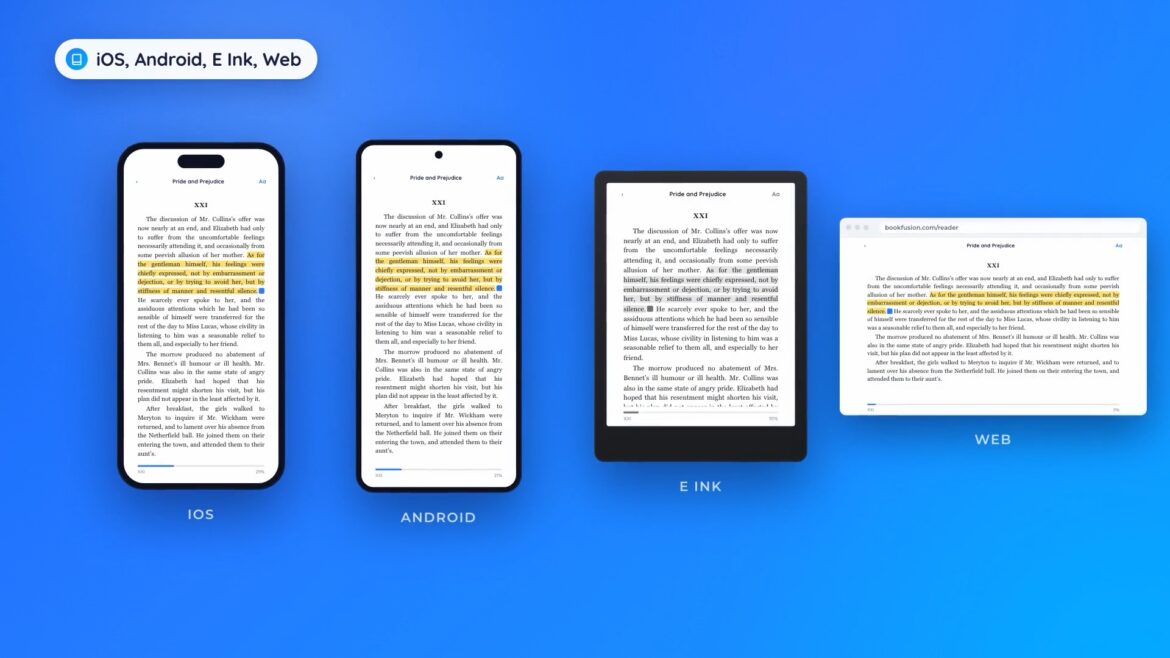
You might start a book on your Windows desktop during the morning, continue on your phone while commuting, and finish another chapter on your favorite e-ink reader before bed. With a BookFusion account, your books, highlights, notes, bookmarks, and reading progress can follow you across supported devices.
Your digital library remains connected whether you use Windows, iOS, Android, Web, or supported e-ink devices and integrations. And when you’re offline? Keep reading. BookFusion will synchronize your changes when you’re connected again.
That’s the experience we’ve been working toward: a reading platform that gives you the freedom to choose how, where, and what you read.
Download BookFusion for Windows Today
After a long development journey, we’re excited to finally put BookFusion for Windows into the hands of more readers. If you’re an existing BookFusion user, simply install the app, sign in, and access your library.
If you’re new to BookFusion, you can create an account to take advantage of cross-device syncing, or start reading your own books locally without signing up.
BookFusion for Windows is available for Windows 10 and Windows 11 (64-bit).
Built With Our Readers
To everyone who joined our early testing programs, reported bugs, suggested features, or simply asked when the Windows app would be ready, thank you! Your feedback made this release better.
Building our own rendering engines and developing a true native desktop experience took more time than we initially planned. It also gave us the foundation to keep improving performance, expand format support, and introduce more advanced reading experiences in future updates.
You can share feedback, report issues, or suggest features through our Discord community or contact us at support@bookfusion.com.
Happy reading!
– The BookFusion Team